





 Why do we ask?


Did you know? Malware can infect routers, too. The Chalubo Trojan bricked over 600,000 routers with infected firmware to hide the attacker’s location and create a network of remotely controlled devices, also known as a botnet.
Has your personal data been recently exposed?
Check if information like your Social Security number, email, and passwords is exposed on the dark web.

You have reached the maximum number of scans allowed. Please come back after 24 hours.

Scanning the dark web...
Scanning public databases...
Scanning millions of records...
Narrowing down the search...
We need more information
Please enter a few more details to ensure we show you the right information.
Risk level:
High
You’re at high risk
We found your personal information on the dark web and on data broker sites.
Your personalized protection plan
Product Benefits:
 Up to $3M Reimbursement for identity theft, with up to $1M for Stolen Funds†††
$10K Scam Reimbursement7
Scam Support
Credit, Checking and Savings Activity Alerts: Unlimited Accounts
Credit & Payday Loan Lock2
Credit Monitoring:
3 Bureau1
Automatic Data Broker Removal8
Dark Web Monitoring
Priority 24/7 Customer Phone Support
Up to $3M Reimbursement for identity theft, with up to $1M for Stolen Funds†††
$10K Scam Reimbursement7
Scam Support
Credit, Checking and Savings Activity Alerts: Unlimited Accounts
Credit & Payday Loan Lock2
Credit Monitoring:
3 Bureau1
Automatic Data Broker Removal8
Dark Web Monitoring
Priority 24/7 Customer Phone Support
LifeLock Total
Your price:
$
349.99
Your price:
$
34.99
60-day money back guarantee with an annual plan
24/7 Live Member Support
No one can prevent all cybercrime or prevent all identity theft.
- Price valid for introductory term. After that, your price will renew at the standard price.
- Your subscription begins immediately after your transaction is complete. A payment method is required at sign-up for trials, and you will be charged at the end of your trial, unless canceled first.
- Prices are subject to change and may be charged up to 35 days prior to renewal. Cancel here or contact Member Services.
- Restrictions apply. Automatically renewing subscription required. If you're a victim of identity theft and not satisfied with our resolution, you may receive a refund for the current term of your subscription. See lifelock.norton.com/guarantee for complete details.
††† Up to $1 million coverage for Lawyers and Experts included with all plans. Reimbursement and expense compensation vary according to plan. Insurance benefits are issued by third parties. See lifelock.norton.com/legal for policy info.
1 Bureau Monitoring and Monthly Credit Report and Score / 3 Bureau Monitoring and Monthly Credit Report and Score.
2 Credit Lock cannot prevent all account takeovers, unauthorized account openings, or credit file inquiries. Deactivates if you downgrade or cancel your subscription.
7 Scam protection coverage as part of identity theft benefits is currently available to all customers residing in the United States, including U.S. territories and the District of Columbia, with the exception of residents of New York. Gen Digital is not a licensed insurance producer. Benefits under the Master Policy are issued and covered by HSB Specialty Insurance Company. You can find further details and exclusions in the summary of benefits.
8 After setup, automatic data broker removal service scans and requests removal every 90 days.
Risk level:
Medium
You’re at medium risk
We found your personal information on data broker sites.
Your personalized protection plan
Product Benefits:
Up to $1.2M Reimbursement for identity theft, with up to $100K for Stolen Funds†††
$5K Scam Reimbursement7
Scam Support
Credit, Checking and Savings Activity Alerts:
5 Accounts
Credit & Payday Loan Lock2
Credit Monitoring:
3 Bureau1
Automatic Data Broker Removal8
Dark Web Monitoring
Priority 24/7 Customer Phone Support
LifeLock Advanced
Your price:
$
199.99
Your price:
$
19.99
60-day money back guarantee with an annual plan
24/7 Live Member Support
No one can prevent all cybercrime or prevent all identity theft.
- Price valid for introductory term. After that, your price will renew at the standard price.
- Your subscription begins immediately after your transaction is complete. A payment method is required at sign-up for trials, and you will be charged at the end of your trial, unless canceled first.
- Prices are subject to change and may be charged up to 35 days prior to renewal. Cancel here or contact Member Services.
- Restrictions apply. Automatically renewing subscription required. If you're a victim of identity theft and not satisfied with our resolution, you may receive a refund for the current term of your subscription. See lifelock.norton.com/guarantee for complete details.
††† Up to $1 million coverage for Lawyers and Experts included with all plans. Reimbursement and expense compensation vary according to plan. Insurance benefits are issued by third parties. See lifelock.norton.com/legal for policy info.
1 Bureau Monitoring and Monthly Credit Report and Score / 3 Bureau Monitoring and Monthly Credit Report and Score.
2 Credit Lock cannot prevent all account takeovers, unauthorized account openings, or credit file inquiries. Deactivates if you downgrade or cancel your subscription.
7 Scam protection coverage as part of identity theft benefits is currently available to all customers residing in the United States, including U.S. territories and the District of Columbia, with the exception of residents of New York. Gen Digital is not a licensed insurance producer. Benefits under the Master Policy are issued and covered by HSB Specialty Insurance Company. You can find further details and exclusions in the summary of benefits.
8 After setup, automatic data broker removal service scans and requests removal every 90 days.
Risk level:
Low
Good news!
We didn’t find your personal information across millions of records or on public data sources.
Your personalized protection plan
Product Benefits:
Up to $1.05M Reimbursement for identity theft, with up to $25K for Stolen Funds†††
Identity Restoration Specialists
Credit, Checking and Savings Activity Alerts:
2 Accounts
Credit & Payday Loan Lock2
Credit Monitoring:
2 Bureau1
Automatic Data Broker Removal8
Dark Web Monitoring
Breach Alerts
24/7 Customer Phone Support
Lifelock Core
Your price:
$
124.99
Your price:
$
12.49
60-day money back guarantee with an annual plan
24/7 Live Member Support
No one can prevent all cybercrime or prevent all identity theft.
- Price valid for introductory term. After that, your price will renew at the standard price.
- Your subscription begins immediately after your transaction is complete. A payment method is required at sign-up for trials, and you will be charged at the end of your trial, unless canceled first.
- Prices are subject to change and may be charged up to 35 days prior to renewal. Cancel here or contact Member Services.
- Restrictions apply. Automatically renewing subscription required. If you're a victim of identity theft and not satisfied with our resolution, you may receive a refund for the current term of your subscription. See lifelock.norton.com/guarantee for complete details.
††† Up to $1 million coverage for Lawyers and Experts included with all plans. Reimbursement and expense compensation vary according to plan. Insurance benefits are issued by third parties. See lifelock.norton.com/legal for policy info.
1 Credit features require successful setup, identity verification, and sufficient credit history by the appropriate credit bureau. Credit monitoring features may take several days to activate after enrollment.
2 Identity Lock cannot prevent all account takeovers, unauthorized account openings, or credit file inquiries. Deactivates if you downgrade or cancel your subscription.
8 After setup, automatic data broker removal service scans and requests removal every 90 days.
1/2
Finding your match...

DID YOU KNOW?
10 cents
If your information is exposed or stolen in a data breach, it can end up on the dark web where it can be sold for as little as 10 cents.
100M+
LifeLock monitors hundreds of millions of data points a second.
Based on your concerns, the best plan for you is:
LifeLock Core
(Individual)
LifeLock Advanced
(Individual)
LifeLock Total
(Individual)
LifeLock Core
(2 adults)
LifeLock Advanced
(2 adults)
LifeLock Total
(2 adults)
LifeLock Core
(2 adults + up to 10 kids)
LifeLock Advanced
(2 adults + up to 10 kids)
LifeLock Total
(2 adults + up to 10 kids)
Pricing details below*
Pricing details below*
Pricing details below*
Pricing details below*
Pricing details below*
Pricing details below*
Pricing details below*
Pricing details below*
Pricing details below*
- Up to $1.05M Reimbursement for identity theft, with up to $25K for Stolen Funds†††
- Up to $1.2M Reimbursement for identity theft, with up to $100K for Stolen Funds†††
- Up to $3M Reimbursement for identity theft, with up to $1M for Stolen Funds†††
- Up to $1.05M Reimbursement for identity theft, with up to $25K for Stolen Funds††† for each adult
- Up to $1.2M Reimbursement for identity theft, with up to $100K for Stolen Funds††† for each adult
- Up to $3M Reimbursement for identity theft, with up to $1M for Stolen Funds††† for each adult
- Up to $1.05M Reimbursement for identity theft, with up to $25K for Stolen Funds††† for each adult
- Up to $1.2M Reimbursement for identity theft, with up to $100K for Stolen Funds††† for each adult
- Up to $3M Reimbursement for identity theft, with up to $1M for Stolen Funds††† for each adult
- Credit Monitoring Coverage1
- Credit Monitoring1 each adult
- Credit Monitoring1 for family
- Credit, Checking & Savings Account Activity Alerts
- Credit, Checking and Savings Activity Alerts for each adult
- Credit, Checking and Savings Activity Alerts for family
- 401K & Investment Account Activity Alerts
- 401K/Investment Account Alerts for each adult
- 401K/Investment Account Alerts for family
- Recurring and Unusual Charge Alerts
- Unexpected & Suspicious Charge Alerts for each adult
- Unexpected & Suspicious Charge Alerts for family
- Stolen Funds Reimbursement†††
- Stolen Funds Reimbursement††† for each adult
- Stolen Funds Reimbursement††† for family
- Lawyers and Experts†††
- Lawyers & Experts††† for each adult
- Lawyers & Experts††† for family
- Automatic Data Broker Removal8
- Automatic Data Broker Removal8 for each adult
- Automatic Data Broker Removal8 for family
- Scam Reimbursement7
- Scam Reimbursement7 for each adult
- Scam Reimbursement7 for family
- Credit Reports & Scores1
- Credit Report & Score for each adult
- Credit Report & Score for family
- Social Media Monitoring
- Social Media Monitoring for each adult
- Social Media Monitoring for family

We have more plans to choose from.
See all plans

Have questions?
Contact sales
*Your subscription begins immediately after payment and automatically renews unless cancelled. Discount for annual plans are compared to monthly billing. Prices subject to change and may be charged up to 35 days before current term ends. Cancel here or contact Member Services.
††† Up to $1 million coverage for Lawyers and Experts included with all plans. Reimbursement and expense compensation vary according to plan. Insurance benefits are issued by third parties. See LifeLock.Norton.com/legal for policy info.
1 Credit features require successful setup, identity verification and sufficient credit history by the appropriate credit bureau. Credit monitoring features may take several days to activate after enrollment.
7 Scam protection coverage as part of identity theft benefits is currently available to all customers residing in the United States, including U.S. territories and the District of Columbia, with the exception of residents of New York. Gen Digital is not a licensed insurance producer. Benefits under the Master Policy are issued and covered by HSB Specialty Insurance Company. You can find further details and exclusions in the Summary of Benefits.
8 After setup, automatic data broker removal service scans and requests removal every 90 days.
Why do we ask?
Identifying your concerns gives us the ability to recommend the right plan for your needs.
Return to quiz
Why do we ask?
Knowing this number helps us recommend coverage that fits your needs.
Return to quiz
Why do we ask?
Providing your email address makes you eligible for notifications of potential identity threats.
Return to quiz
How to know if you have been hacked: 11 warning signs
When hackers strike, they can install spyware on your device, infiltrate your online accounts, and even steal your banking passwords. Find out how to know if you have been hacked. Then, join LifeLock to receive identity and Social Security alerts that help protect against identity theft after a hacking incident.


Device and account hacks can lead to a range of nasty consequences, including malware infections, stolen personal information, scammers defrauding your contacts, and ultimately identity theft — which can take years to recover from without professional assistance.
Fortunately, unless you’re being targeted by highly sophisticated threat actors, there will likely be major red flags that a hacker has infiltrated your device or online accounts — like crashes, freezes, and password changes you didn’t initiate.
Recognizing these warning signs can help you take control before more serious damage occurs. Read on to learn more about how to know if you’ve been hacked, how to recover accounts and devices, and how to help protect yourself going forward. We’ll start by discussing device hacks and move on to account hacks later.
1. Device slowdowns, freezing, or crashing
Your device may be hacked if it runs slowly, crashes frequently, freezes a lot, or runs hot when idle. This is because a hacked device could be infected with malware, which drains system resources as it runs in the background.
One common type of malware on hacked devices is spyware. Spyware can monitor your device, record what you type, and even hijack your camera, transmitting all this information back to the hacker. These processes consume CPU power, RAM, and battery life, which can noticeably affect device performance.
If your device is inexplicably sluggish, check for additional signs of being hacked by malware, like unexpected browser changes, unfamiliar apps, or suspicious camera activations.
2. Unusual network activity and high data usage
If your device suddenly starts using much more data than usual, it could be a sign that your phone has been hacked, and malware is communicating with an attacker-controlled server over your Wi-Fi or mobile data connection, quietly transmitting information.
If you suspect unusual network activity, double-check your data and network usage on your phone or Wi-Fi router. Check whether a particular app is consuming an inordinate amount of data.
Here’s how to check your iPhone for high data usage:
- Open the Settings app.
- Tap Cellular or Mobile Data.
- Scroll down to review your cellular data.
Here’s how to check your Android phone for high data usage (steps may vary depending on your Android phone’s model):
- Open Settings and tap Network & internet or Connections.
- Select Internet or Data Usage.
- Tap the gear icon next to your Mobile network or tap Mobile data usage.
Here’s how to check your router for high network usage:
- Type your router’s IP address (found on the side of the router or in the owner’s manual) into your browser’s address bar, then hit Enter. This should take you to a login page for your router settings.
- Log in with your router’s credentials (often found in the owner’s manual). Unless you remember changing them, there’s a good chance your default router credentials are a generic combo like “admin” and “1234.”
- Look for sections like Connected Devices or Traffic Monitor.
If your internet service provider (ISP) has an app, you can also check for high network usage there.
3. Mystery apps that refuse to be uninstalled
If an app you never installed suddenly appears on your device, it might be a sign you’ve been hacked — especially if you can’t seem to uninstall it.
In some cases, malware can quietly install malicious apps on its own after an initial infection. These apps may appear as unfamiliar system tools or duplicate versions of real apps. These apps could steal your login details, spy on you (especially if you’re careless with app permissions), or link your device to a botnet.
It’s also possible to install a malicious app yourself without realizing it. Malware disguised as harmless or helpful software is known as a Trojan. Trojan-style apps are more likely to slip onto your device if it’s jailbroken or if you download apps from sketchy third-party sources instead of official app stores.
A fake banking app that captures your login information could be particularly dangerous, as it could expose you to financial identity theft.
4. Changed device security or monitoring settings
Your device may be hacked if security or monitoring tools stop working or are disabled without your permission. Some types of malware attempt to shut down antivirus software, block access to system utilities like Windows Task Manager or macOS Activity Monitor, or weaken firewall protections to avoid detection.
Malware that targets your security software often enables follow-up attacks. For example, the BlackCat ransomware, first identified in 2021, was designed to evade or interfere with security tools such as Microsoft Defender, encrypt victims’ files, and exfiltrate sensitive data. By gaining elevated privileges on compromised systems, attackers could disable defenses, erase security event logs, and then demand a ransom, threatening to leak stolen data if payment wasn’t made.
5. Changed, missing, or encrypted files
If files on your device suddenly go missing, appear renamed, or won’t open properly, it could be a sign your system has been hacked. Some types of malware scan for documents, photos, and backups and then delete, alter, or lock them without your permission. You may notice unfamiliar file extensions (as is the case with Akira ransomware), corrupted files, or error messages saying you don’t have permission to access data you previously could.
In serious cases, attackers use ransomware to encrypt your files and demand payment to restore access, threatening to expose your data on the dark web if you don’t comply. This often happens after malware gains elevated privileges, allowing it to modify large portions of your system at once. Even if no ransom note appears, unexpected file changes can indicate unauthorized access and should be treated as a serious warning sign.
6. Suspicious camera and microphone activation
If your camera or microphone suddenly turns on without you using them, your device may have been infected by a remote access Trojan (RAT), which is a type of malware that gives hackers control over your device. RATs can exploit system permissions to spy on you by taking pictures, recording audio, or stealing your files — hence the “random” camera activations. They may also be able to remotely control your mouse, allowing hackers to open your files and folders.
Here’s how to check whether your camera or microphone is in use on different devices:
- All devices: Alerts or messages saying your camera or microphone is already in use when you try to open them.
- Macs: A green camera icon or an orange microphone icon in the menu bar, appearing when you’re not using recording apps.
- Windows PCs: A camera or microphone icon in the system tray (bottom-right of the taskbar) indicating active use.
- iPhones and Androids: A green dot when the camera is active or an orange dot when the microphone is active, even though no app appears to be using them.
RATs can also hack your smartphone to record calls or spy on your phone conversations. Listen for echoes, static, or other background noises, indicating you may have a hacker listening to your audio.
7. Unusual browser activity and pop-up ads
If your browser’s homepage or search engine changes without your permission, unfamiliar extensions appear, or intrusive ads start popping up frequently, your device may be infected with browser-based malware such as adware or a malicious extension.
This type of malware often modifies browser settings to persist, meaning changes you try to undo, like resetting your homepage or removing extensions, may be automatically reversed.
For example, adware injects unwanted ads into web pages, search results, or new tabs, and in some cases can trigger browser notifications even when you’re not actively browsing. These fake alerts may impersonate antivirus warnings or system messages and attempt to scare users into calling a phone number or installing additional malware. In one reported case, a Florida woman was tricked by a fake virus pop-up into contacting scammers and ultimately lost over $150,000.
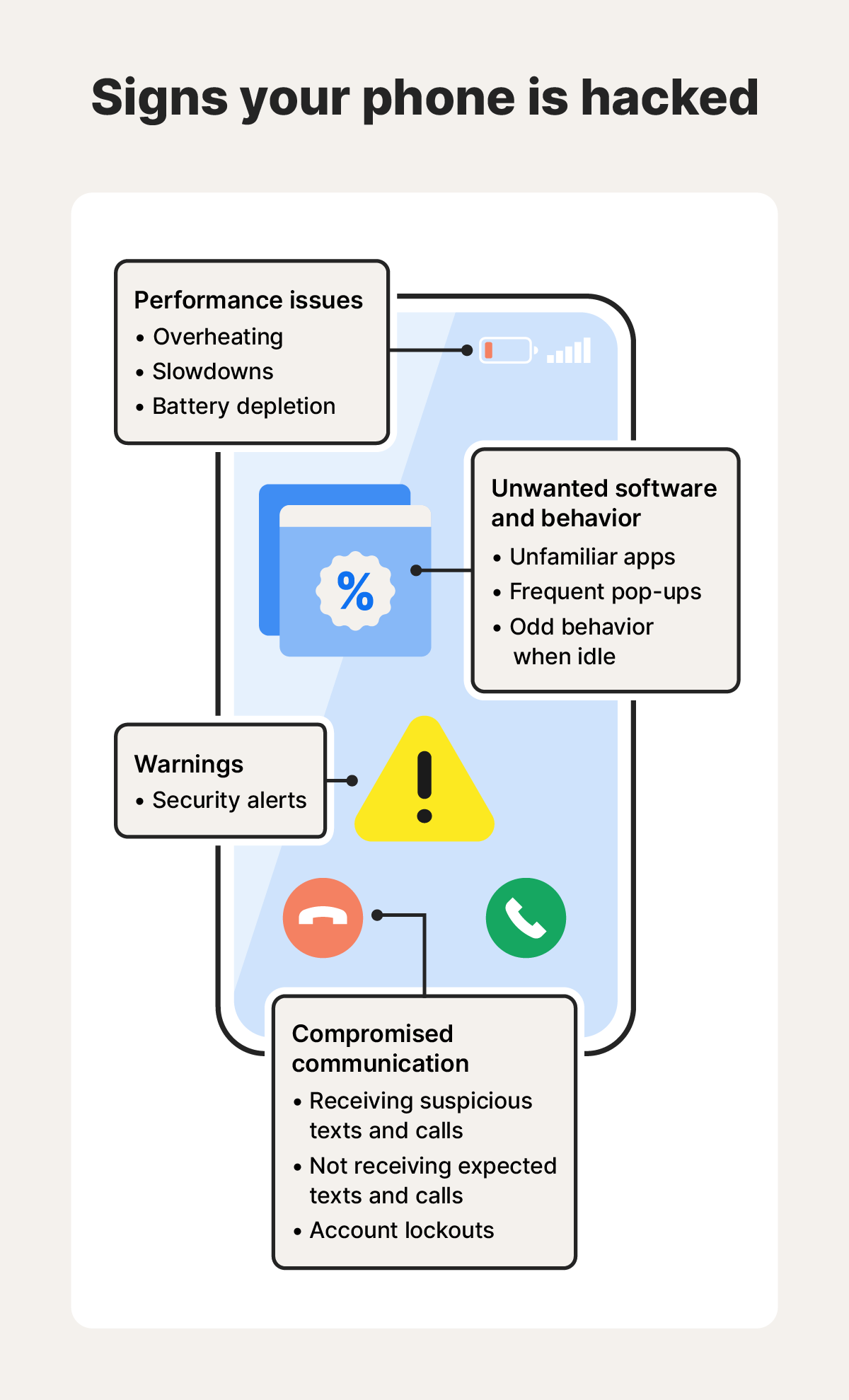
Signs that a device has been hacked.
8. Unusual account activity
The previous examples have explored signs of a hacked device. Now let’s dig into signs of hacked accounts.
If you get a notification about a password, phone number, or email change that you didn’t initiate, your account may have been hacked. To verify, try logging into the account in question and double-checking your account settings; look at the emails and phone numbers associated with the account. Just be careful about clicking links in email notifications about account changes, as these may be phishing attempts.
If hackers change the email and phone number associated with your account, they could block you out entirely, forcing you to go through customer support and an account recovery process to regain access.
Likewise, someone may be trying to hack into your accounts if you get two-factor authentication codes you didn’t initiate or alerts about failed login attempts. Often, this means your email and/or password have been exposed in a data breach, and hackers are trying to take over your accounts with the leaked information. Hackers use credential stuffing attacks to test whether a leaked username and password combination for one app or website works on other accounts, too, reinforcing the importance of using unique passwords.
Hackers may not always change your password. They may simply lurk and spy discreetly. Fortunately, many major platforms allow you to check what devices are logged into your account, usually in the security section. Here’s how to check for unusual devices or locations on popular providers:
- Google: In your Google account, click the Security tab from the menu on the left side of your screen and scroll down to Your devices.
- Apple: Go to System Settings, select your name, and scroll down to see a list of devices you’re signed in on.
- Microsoft: Click Security from the top menu, scroll down, and select View my sign-in activity.
9. Someone is impersonating you
If your contacts are receiving strange messages or calls that appear to come from you, but aren’t, someone may have hacked one of your online accounts. Attackers can hijack social media accounts, messaging apps, or even SIM cards to trick your contacts into sharing sensitive information or sending money. According to the Identity Theft Resource Center (ITRC), impersonation scams increased by 148% in 2025.
SIM swap attacks are one way scammers can impersonate you and defraud your friends. In this scheme, cybercriminals use social engineering tactics to convince your mobile carrier to transfer your phone number to a device they control, allowing them to send texts and make calls as if they were you.
But, even without stealing your number this way, attackers can spoof your phone number or email address, forging information that appears on the recipient’s screen while actually using their own contact details.
Impersonation can even escalate into full identity theft if criminals collect enough of your information to open credit cards, take out loans, or file tax returns in your name.
10. Suspicious activity in your messaging or emails
Your account may have been hacked if you find emails or messages you never wrote in your email’s sent folder or on social media. Hackers sometimes delete these messages to cover their tracks, so ask your friends if they’ve received anything suspicious.
Watch for these additional signs of a compromised email or social media account:
- Fewer email replies: Email providers may flag your address as suspicious if hackers use your account to blast spam. Legitimate emails you send may start landing in spam folders, making it seem like people are ignoring you.
- Fewer emails received: Attackers can set up email forwarding rules to redirect your incoming messages to their own accounts. Check your email settings for unauthorized forwarding addresses or filters you didn’t create.
- Account warnings: Social media administrators may flag your account as spammy or suspicious if criminals target your friends or start posting en masse. For instance, Facebook scammers pretending to be you may claim to be stuck in another country and ask your friends for money to help them out.
11. Unrecognized transfers or missing money
Your financial accounts may have been hacked if you notice unusual transfers or money disappearing from your account. Cybercriminals often test the waters by starting with small transfers to see what they can get away with. In more aggressive attacks, they make large wire transfers that are nearly impossible to reverse.
Banks might not refund money lost to wire-transfer scams because wire transfers are typically governed by the Uniform Commercial Code (UCC), which can allow banks to shift liability to customers if certain security procedures were followed. However, in 2025, the New York Attorney General filed a lawsuit arguing that some consumer wire transfers should be covered by the Electronic Funds Transfer Act (EFTA), which provides stronger consumer protections. A court has allowed the claim to move forward, but the issue remains unsettled. If courts ultimately agree with this interpretation, consumers could gain greater protection against wire-transfer fraud.
For now, debit or credit card transfers provide more protection than ACH transfers. Under federal law, reporting unauthorized credit or debit card charges within two business days limits your liability to $50. Wait longer, and you could be held responsible for significantly more.
What to do if you’ve been hacked
If you think your device has been hacked, immediately disconnect from the internet and run an antivirus scan. Quick action can help prevent further losses.
Recover your device
Recovering your device starts with disconnecting from the internet and running an antivirus scan. Here are the steps to take in more detail:
- Disconnect from the internet: Turning off the internet prevents remote access and helps prevent malware from communicating with command-and-control servers or spreading further.
- Run an antivirus scan: Scan your device using a trusted antivirus program to find and remove the malware.
- Reboot into safe mode: Safe mode stops all third-party applications from running.
- Remove unrecognized programs: While in safe mode, review and uninstall any suspicious apps you don’t remember downloading. If you encounter duplicate apps, delete both.
- Disable permissions: Review your app list and remove access to your camera, microphone, and files.
If your device still exhibits unusual behavior, you may have persistent malware. You can potentially remove this malware through a full factory reset of your device and router.
Recover your accounts
Recovering your accounts starts with immediately changing your password, enabling 2FA, and removing unauthorized devices from your account.
Here’s how to recover your account:
- Change passwords: Update to a strong password. Ensure the password is long, unpredictable, and unique: it shouldn’t match any other passwords you use.
- Enable 2FA: Add two-factor authentication (2FA) to affected accounts so criminals can’t access your device. Consider using authentication apps as your second verification method, as text and email authentication codes can be intercepted.
- Review account settings: After regaining account access, review your settings to check for any suspicious changes. Look for new recovery emails, unfamiliar phone numbers, or unknown devices and remove them.
- Monitor accounts closely: Keep a close eye on your accounts to make sure there are no further breaches. On social media, take the time to remove any suspicious posts or unusual messages sent by the hacker.
If you can’t access your account, contact customer service and follow their account recovery process. This can take several days, and it may temporarily freeze your account as they investigate suspicious activity.
How to protect yourself from future hacks
You can protect yourself from future hacks by securing your devices and accounts through smart security practices, identity protection, and security software.
Protecting your device
Protecting your device requires regular updates, robust security software, and good digital hygiene practices. These preventative measures can block many hacking attempts before they become serious threats.
Here’s how to keep your device safe:
- Update your software: Regular software updates keep your device secure by resolving software vulnerabilities present in outdated apps or programs. Enable automatic software updates to stay protected without having to manually update it.
- Use antivirus software: Security software helps protect your device from malware infections with real-time scanning and threat detection. Premium software uses behavioral detection to spot newly created malware based on suspicious activity patterns.
- Don’t jailbreak your phone: Jailbreaking removes built-in security protections designed to keep your device safe. This opens the door to malicious third-party apps that can hide malware.
- Keep your router secure: Change your router’s default name and password, update its firmware regularly, and set encryption to WPA3 (or WPA2 if WPA3 isn’t available). You can manage these changes from your router’s admin dashboard by typing your router’s IP address into your browser’s address bar.
- Don’t click suspicious links: Clicking malicious links can direct you to websites that install malware on your device. Don’t click links from unknown senders or suspicious, unexpected messages, even if they appear to come from someone you know.
- Lock your device: Use a strong PIN, password, or biometric lock to prevent unauthorized access. This adds a critical barrier against attackers who might try to access your device remotely.
- Avoid unsecured networks: Public Wi-Fi networks lack encryption, making your data vulnerable to interception. If you must use public networks, protect yourself with a virtual private network (VPN) to encrypt your connection.
- Revoke unnecessary app permissions: Regularly audit which apps can access your camera, microphone, location, and contacts. Remove permissions from apps that don’t need them, especially if you rarely use those features.
Protecting your accounts
Strong account security relies on smart password habits, vigilance against social engineering tricks, and monitoring tools that catch breaches so you can take protective measures. These layers of defense make it significantly harder for attackers to compromise your personal accounts.
Here are some tips for protecting your accounts:
- Use strong, unique passwords: Create long, complex passwords that differ for every account. A password manager can help handle the heavy lifting, creating and storing strong passwords so you only have to remember one master password.
- Recognize phishing attacks: Scammers use fake emails and messages to lure you into counterfeit login pages designed to steal your credentials. Always verify the sender’s email address and examine the URL carefully, as phishing sites often misspell legitimate domains by one or two letters.
- Never share passwords: Even with trusted contacts, sharing passwords is risky. If that password falls into the wrong hands, an attacker gains access to everything tied to it, so avoid doing this unless absolutely necessary.
- Carefully choose security questions: Avoid security questions with answers that are easy to find online, like your hometown or pet’s name. Cybercriminals can research this information, so only select questions you can answer based on personal memories or experiences others wouldn’t know about.
- Use identity monitoring tools: Identity monitoring services alert you if your personal information appears on the dark web or in public data breaches. This early warning system can give you time to take protective action before criminals exploit your data to open credit accounts or impersonate you.
Defend yourself against identity-stealing hackers
Hackers target your devices, online accounts, and the personal information you store online. While security software and smart habits provide solid device-level protection, they’re less helpful if a criminal already has their hands on your personal information.
Identity protection services help fill that gap by monitoring for signs of identity theft and helping you recover if your identity is compromised.
LifeLock stands guard by monitoring criminal marketplaces on the dark web for stolen information so you can take action. It also alerts you if your Social Security number, name, address, or date of birth are used to open new credit accounts. And, if identity theft occurs, a dedicated U.S.-based Personal Restoration Specialist will help resolve your case from start to finish.
FAQs
Can you be hacked without knowing it?
Yes. Cybercriminals can deploy hidden malware that operates silently in the background while collecting your keystrokes, passwords, and personal information. By the time you notice the warning signs, significant damage may already be done.
Can antivirus software prevent hacking?
Yes. Quality antivirus software can catch malware and help prevent hacking. Most reputable solutions include real-time scanning that identifies and blocks suspicious apps as they attempt to install, preventing many common attacks.
Is using public Wi-Fi safe from hacking?
No. Public Wi-Fi can make you vulnerable to packet sniffing attacks, where cybercriminals monitor unencrypted data traffic on the same network. Without protection, such as a VPN, hackers may intercept sensitive data like passwords, emails, and banking logins.
What’s the difference between being hacked and phished?
Phishing is a social engineering scam that uses deception to fool targets into providing information, while hacking exploits technical vulnerabilities. The two often work together: attackers may trick you into signing up for fake software that’s actually malware, which then hacks your system.
Editors’ note: Our articles provide educational information about identity theft, scams, financial fraud, and other topics that can put your identity or personal accounts at risk. LifeLock offerings may not cover or protect against every type of crime, fraud, scam, or threat we write about. For more details about how we write, review, and update our articles, see our Editorial Policy.
This article contains
- 1. Device slowdowns, freezing, or crashing
- 2. Unusual network activity and high data usage
- 3. Mystery apps that refuse to be uninstalled
- 4. Changed device security or monitoring settings
- 5. Changed, missing, or encrypted files
- 6. Suspicious camera and microphone activation
- 7. Unusual browser activity and pop-up ads
- 8. Unusual account activity
- 9. Someone is impersonating you
- 10. Suspicious activity in your messaging or emails
- 11. Unrecognized transfers or missing money
- What to do if you’ve been hacked
- How to protect yourself from future hacks
- Defend yourself against identity-stealing hackers
- FAQs
Related articles


Internet Security
Your social media account has been hijacked. Now what?
January 05, 2024
·
3 min read

Data Breaches
What to do if your personal information is compromised in a data breach
March 19, 2026
·
8 min read

![How to remove your information from the internet [11 free ways]](/content/dam/lifelock/learn/thumbnails/remove-personal-information-from-the-internet-thumb-2025.jpg)
Identity Theft
How to remove your information from the internet [11 free ways]
August 25, 2026
·
11 min read
Internet Security
Your social media account has been hijacked. Now what?
January 05, 2024
·
3 min read
Data Breaches
What to do if your personal information is compromised in a data breach
March 19, 2026
·
8 min read
Identity Theft
How to remove your information from the internet [11 free ways]
August 25, 2026
·
11 min read
Internet Security
Your social media account has been hijacked. Now what?
January 05, 2024
·
3 min read
Data Breaches
What to do if your personal information is compromised in a data breach
March 19, 2026
·
8 min read
Identity Theft
How to remove your information from the internet [11 free ways]
August 25, 2026
·
11 min read